The GDI opportunity and site offerings accommodate all levels of experience. We’ve shared quite a few blog posts on getting started with your site, but what if you already have experience creating websites, or even have one already made you would like to use? GDI can accommodate you.
Web Hosting
GDI offers hosting services for our more advanced affiliates. GDI’s hosting service allows you to build your very own site from scratch. You can do this by bypassing some of the user friendly restrictions built into SiteBuilder. This will allow you to build a custom website just they way you like it and upload the files to our servers. Hosting gives you totally flexibility and control of your site, while using GDI servers and being able to build income for life. This hosting is available to all members at not extra charge.
URL Forwarding
Do you already have a site created somewhere else, but are unable to move the content and don’t want to start all over? Then GDI’s URL forwarding service is perfect for you. You may have number of reason for wanting a new URL but not a whole new website from scratch. Maybe your URL is hard to remember, unprofessional or just doesn’t meet your needs anymore. To solve these problems, you can use GDI’s URL forwarding to route your new .ws domain to your existing website. When someone visits your .ws domain they will be automatically transported to your already built and existing site.
Head to your Member’s Area at www.website.ws/members to learn more.
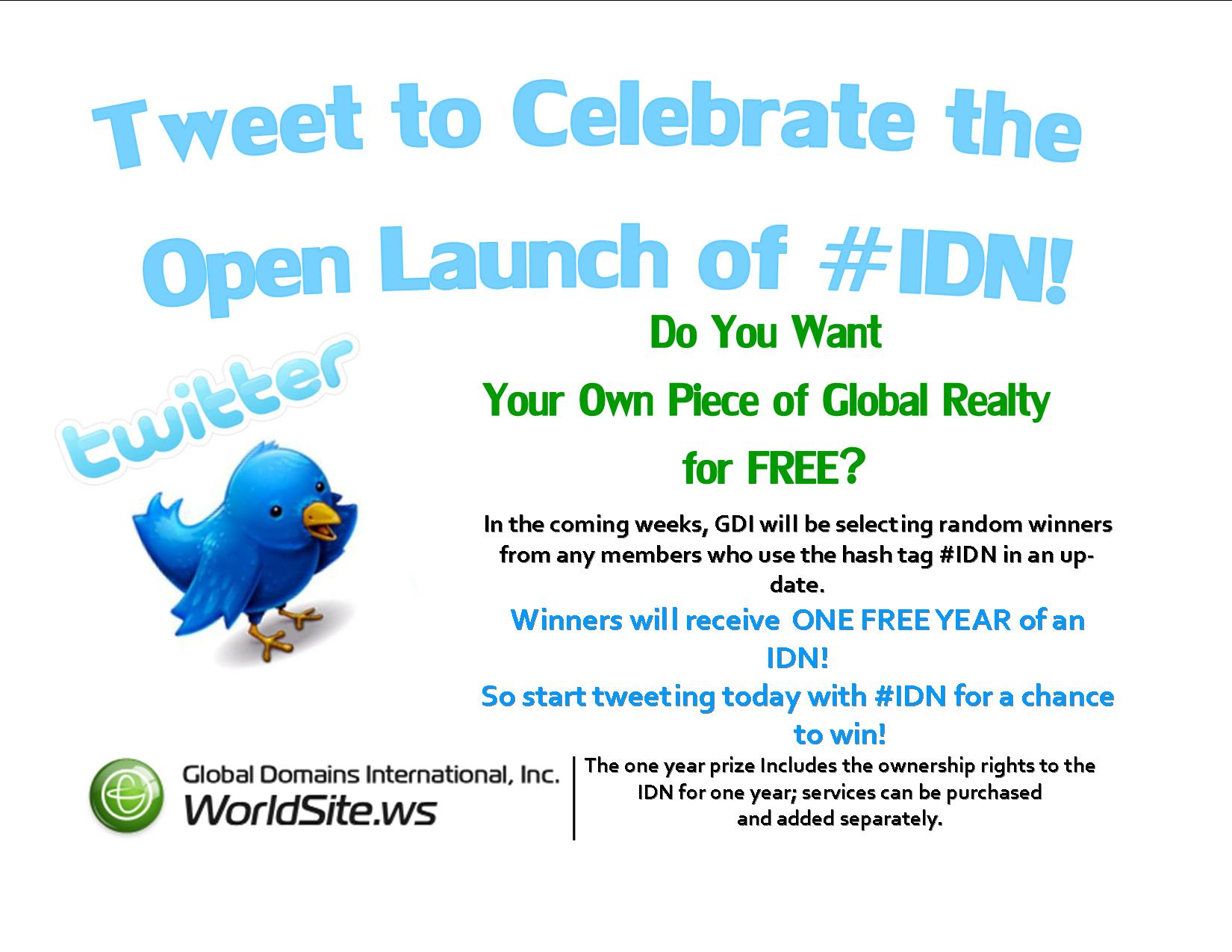
GDI will be selection on random winner each day who sends a tweet with #IDN. Winners will receive one year free of one IDN, to which they can add services if wanted. Head over to www.Twitter.com to start tweeting or set up your Twitter account!
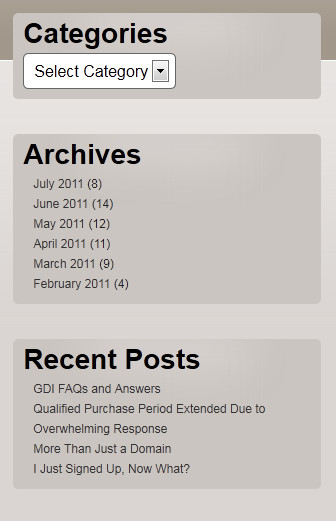
WordPress is a great tool to create a unique website or blog. It offers some great plugins for the most basic of site needs all the way up to addons and upgrades you may never need. One way to make for a great site for your visitors and those in your network is to make your site easy to navigate. This can be done with clearly labeled links and calls to action without a ton of clutter and confusing layouts. An easy way to accomplish this with WordPress is to add a simple sidebar. As you can see from the image below, this blog uses a sidebar to help our visitors navigate that page and though past posts. Read on for our step by step guide to adding a side bar.
Log in to your WordPress account using the same log in and password as your GDI member account. Once logged in you will be in the Dashboard area, from here, navigate to the Appearance link on the left hand side and click on “widgets” beneath appearance.
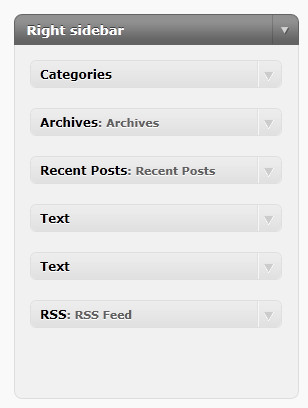
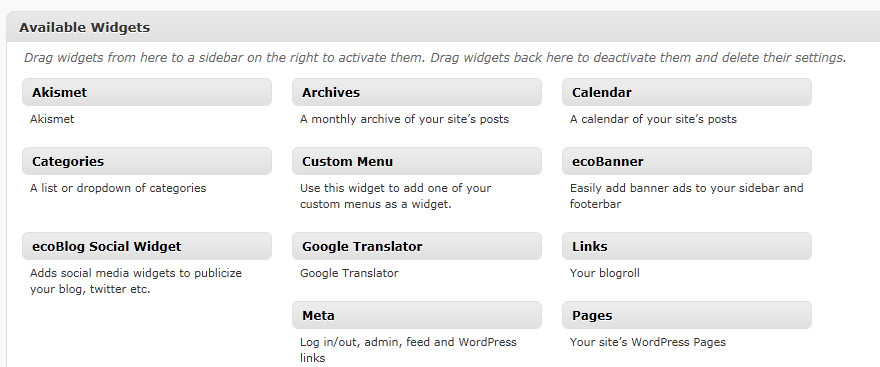
Once you are in your widgets area you will see options to your right depending on what kind of theme you are using, but you should have at least one “Side Bar” area shown. These areas are drag and drop, meaning you simply need to chose the options from the bays of widgets in the center of the page and drag them to the sidebar area.
Now it’s time to decide what you would like in your sidebar area. Some good widgets to use in a side bar are categories, recent posts, and archives sorted by months, like the GDI blog has. Add anything you would like to the side bar, but don’t add too much, as cluttering this area would defeat the purpose.
After dragging each widget to the side bar area, you may need to format the widget by adding a title or adjusting some options. Take the time to reload your blog after each change to see how the widgets show, be sure to test all links and widgets to ensure they’re working.
You’re done! Test your sidebar widgets often to ensure they are still working as desired.